How to make web pages accessible
Written content
Use clear, accessible writing so users can quickly find and understand your information.
On this page
- Write web content people can read
- Use bulleted and numbered lists
- Check written content
- Accessibility standards and resources
Write web content people can read
The simpler your content is, the easier it is for people to understand, and the fewer questions or complaints you’ll receive.
Make your content simple and structured so everyone can understand it quickly.
Do:
- structure content so information is easy to find
- write in plain English – use simple words and avoid jargon
- use headings and links correctly – make them clear and descriptive
- provide text alternatives for important images and other non-text content, such as captions for videos
Learn more about how to write accessible web content.
Show text as text, not images
Avoid using images to show important text. Always provide content as real text.
Examples of unnecessary “images of text” include:
- quotes
- social media post content
- excerpts from documents
- key facts from slides
If you must use an image with text, include the same text as real content nearby.
It is okay for an image to include text if the text is decorative or not the main focus.
Use bulleted and numbered lists
Lists make content easier to read and help group important information.
We use two main types of lists:
- Bulleted (or unordered) lists
- Numbered (or ordered) lists
Do not manually create lists using dashes, numbers, or spaces.
Learn how to write and structure different types of lists in content.
Making lists accessible on the web
Lists must use proper coding so they are formatted consistently and digital tools can understand them. This includes:
- Unordered or bulleted lists: <ul> and <li>
- Ordered or numbered lists: <ol> and <li>
- Nested lists: <li> with either <ul> or <ol>
This allows a screen reader to announce the list and the number of items, helping users navigate content. Search engines, AI, and other digital tools can also understand page structure.
How to add and format lists
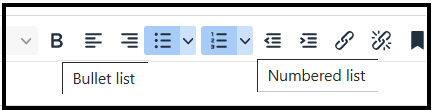
Most website editing tools let editors add or edit lists using a formatting toolbar.
Some tools allow you to change the visual styling of bullets. Make sure the styling is consistent throughout the page (see image).
Check written content
Check your content both manually and with automated tools. Include feedback from real users whenever possible.
Check for:
- clear, readable language
- correctly formatted headings, links, and lists
- proper text alternatives for information in images and media
Find tips in how to write accessible web content.
Accessibility standards and resources
Following this guidance helps more people access council content and supports meeting UK accessibility regulations, including PSBAR 2018.
For more guidance on writing content:
- Content design: planning, writing and managing content (GOV.UK)
- 7 easy ways to make your content more accessible (Scope for business)
If system or format limits stop you from following this guidance, contact the Communications and Marketing team before publishing.