How to make web pages accessible
Tables
If you work for the council, first discuss using tables on web pages with the Communications and Marketing team.
Tables on web pages must be accessible so data is presented in a clear, structured way, including for users of assistive technologies.
On this page
- When to use a table
- Making a table accessible
- How to add or edit tables
- Checking tables for accessibility
- Accessibility standards and resources
When to use a table
A table is used to present simple data or information to make it easier to:
- understand the relationship between different types of data
- examine a range of possibilities at a glance
Use tables only when there is a real user need. Complex tables can be hard to read on mobile devices and are more difficult for people using screen readers.
Tables may be used when:
- presenting simple data that cannot be shown clearly as normal text
- providing a searchable table of information (usually added by a web developer)
Do not use tables:
- to create page layouts
- when normal page structure, such as headers or lists, can be used
- for very large or nested tables (tables within tables)
Consider alternatives
A table may not be the best way to present information on a web page. Consider alternatives to simple tables, such as:
- a series of bulleted lists with headings and subheadings
- a single bulleted list separating information with commas
For large datasets, summarise key findings in text and provide an accessible spreadsheet instead.
Making a table accessible
A table must be added correctly to be accessible. Inaccessible tables are difficult for people using mobile devices or assistive technologies like screen readers.
Your table must:
- have a clear, simple layout
- have a minimum of 2 columns and 3 rows, including the header row
- include coded header cells (at least one row or one column)
- define the header cell scope (which row or column the header applies to)
- include a caption (<caption> tag) describing the table
- follow a logical reading order from left-to-right, row-by-row (test this using the Tab key)
- not use split, merged, empty or nested cells (tables within tables)
- stretch to 100% page width so it resizes on smaller screens
Your table should:
- avoid including large amounts of text in a table (use headings and lists instead)
- have left-align text and right-align numerical data (column headers can be either depending on type of data)
- split tables with complex or merged cells into multiple tables
Do not:
- copy and paste tables from Word or Excel into the website editor
- use images of tables instead of an accessible web page table
- create complex tables with irregular or multi-level headers
How to add or edit tables
Only add a table if:
- there is a real user need
- you know how to make it accessible for assistive technologies
Most content management systems (CMSs) allow you to add simple tables using the text formatting toolbar (see image below).
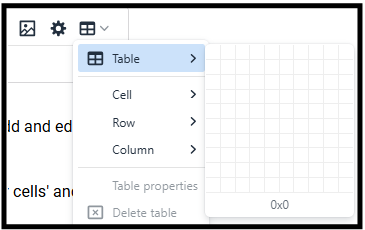
Setting headers in a website editing tool
On our website, editors use 'Cell properties' to set table cell type to 'Header cells' and choose a scope (which cells a header relates to).

Example 1: Table with header cells in the top row only
This table example of fictional upcoming library events has a border and header cells in the top row only.
| Date | Event | Venue |
|---|---|---|
| 16 April 2023 | The History of Robin Hood | Arnold Library |
| 3 March 2023 | Researching Family History: An Introduction | Mansfield Library |
| 18 June 2023 | Computer and Internet Basics | East Leake Library |
This table has been set up using:
- a top row set from 'Cell' to 'Header cell' and the scope set to 'Columns' (in 'Cell properties')
- a table <caption> element added (in 'Table properties')
- table size set at 100% page width (in 'Table properties)
- 5px cell padding, or space between text and cell wall (in 'Table properties')
- 1px border (in 'Table properties')
Example: Table with header cells in the top row and first column
This table example for fictional school admissions appeal dates has header information in both the top row and the first column.
| Offer date | Appeals lodged by | Appeals to be heard by | |
|---|---|---|---|
| Primary | 16 April 2018 | 20 May 2018 | 22 July 2018 |
| Secondary | 3 March 2018 | 31 March 2018 | 18 June 2018 |
This table has been set up using:
- top row cells with text set from 'Cell' to 'Header cell' and the scope set to 'Columns' (in 'Cell properties')
- 'Primary' and 'Secondary' row cells set from 'cell' to 'header' with a scope set to 'rows' (in 'Cell properties')
- table <caption> tag added (in 'Table properties')
- table size set at 100% page width (in 'Table properties)
- no table border (in 'Table properties')
Checking tables for accessibility
After publishing, check that tables are set up correctly:
- Open the web page in a web browser (like Microsoft Edge)
- Open the WAVE Evaluation Tool (Microsoft Edge Addons).
- In the Structural Elements section (Details tab), select the table icons and check:
- at least one header row or column is defined with the correct scope (cells a header relates to)
- no empty header cells
- text that describes the table has a <caption> tag added

Accessibility standards and resources
Following this guidance helps more people access council content and supports meeting UK accessibility regulations, including PSBAR 2018.
For more guidance on creating accessible tables:
- Content design: planning, writing and managing content: Tables (GOV.UK)
- Creating Accessible Data Tables (WebAIM)
If system or format limits stop you from following this guidance, contact the Communications and Marketing team before publishing.