How to make web pages accessible
Links and link text
Use descriptive and meaningful link text so people know where a link will take them.
On this page
- Let people know what links do
- How to add and format links
- Check links and link text
- Accessibility standards and resources
Let people know what links do
Links on web pages are usually underlined and shown in a different colour from regular text. They work best when they are descriptive and meaningful.
Avoid vague text such as “click here” or “read more.”
Descriptive links help all users, especially people using screen readers, because they can scan a list of links rather than reading the entire page.
Learn how to write good link text
How to add and format links
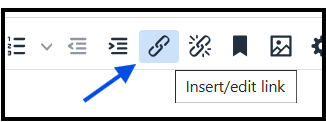
How you add links depends on your website editing tool. On our website, editors typically use the link icon in the formatting toolbar to insert or edit:
- internal links by selecting a page from the 'Link to page' or 'Link to media' pickers
- external links by pasting the full URL
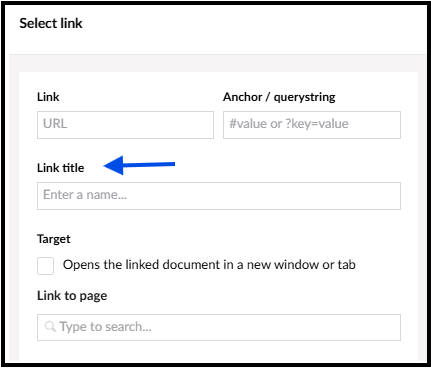
Link title (hover text)
Many web editing tools include a link title or hover text field. It may also be called title text or screen tips.
Do not use link titles if the link text is already clear. Unnecessary link titles can reduce accessibility because:
- desktop users may find the pop-up confusing or blocks content
- mobile users often cannot see the hover text
- screen reader users can find them confusing if they repeat the same or similar link information
Remove unnecessary link titles where possible.
Links that open in a new tab
Most links should open in the same window. This helps users:
- navigate back easily with the browser’s back button
- avoid confusion and extra tabs on mobile devices
- reduce the visual clutter of multiple open tabs
- move between pages easily with screen readers
Some external links are okay to open in a new tab, for example:
- online forms or surveys
- secure websites where personal information is submitted
Opening a link in a new tab in these cases prevents users from losing typed information if they use the back button.
Always warn users in the link text if a link opens in a new tab, for example: “Apply for a care needs assessment [opens in new tab]”.
Related links
Some pages include related links or buttons outside the main content. You should:
- limit related links to only the most important pages
- order them consistently across similar pages
- avoid directional instructions like “Click the link to the right,” as layout can change on smaller screens
Check links and link text
Before publishing, make sure all links are descriptive and meaningful. Check that:
- link text is clear (avoid “click here”)
- button links clearly describe the action they perform
- links work and lead to the correct page or file
- PDFs or other files include file types in square brackets, for example, [PDF] or [YouTube]
- external links make the destination clear, for example, “Guidance on writing links (GOV.UK)”
- unnecessary link titles are removed
For examples of good and poor link text, read how to write good link text
Additional checks after publishing
After you publish your web page, check your links:
- Open the web page in a web browser, like Microsoft Edge.
- Open WAVE Evaluation Tool (Microsoft Edge Addons)
- Go to the 'Details' panel to check for alerts and errors
- Check for and fix the following:
-
-
Errors: Empty link or a link that contains no text (Fix: Remove the empty link).
- Alert: Redundant link or adjacent links that go to the same URL (Fix: See if link text can be combined into a single link).
- Alert: Redundant title text or title attribute text is the same as link text (Fix: remove title text if possible).
- Alert: Underlined text (Fix: Remove underlining from text that's not a link - underlining should be reserved for link text).
-
Accessibility standards and resources
Following this guidance helps more people access council content and supports meeting UK accessibility regulations, including PSBAR 2018.
For more guidance on writing links:
- How to write hyperlink text for better web accessibility (Scope for business)
- Links and Hypertext - Introduction to Links and Hypertext (WebAIM)
If system or format limits stop you from following this guidance, contact the Communications and Marketing team before publishing.