How to make video and audio accessible
Visual information in videos
Make sure videos use accessible colours and avoid flashing images. This helps people with colour blindness or photosensitive conditions use your content.
Using colour
Tiredness, screen brightness, light levels, age, and visual impairments can make colours harder to see.
Make sure colours used for important information have accessible contrast. Examples include:
- on-screen caption text (open captions)
- important text
- informative images, such as charts
For a chart or graphs, ensure good contrast between:
- text labels and background colours
- lines and background colours
- lines next to each other
Colour contrast
Colour contrast ratio measures brightness differences. Higher contrast makes text and images easier to see.
When creating video content:
- important text and images must have a minimum contrast ratio of 3:1
- the easiest to read colours have a minimum contrast ratio of 4.5:1.
- decorative images or logos do not need accessible contrast.
- do not use colour alone to show meaning (add text labels or patterns where needed)
Checking colour contrast
There are free tools you can use to check colour combinations in your content.
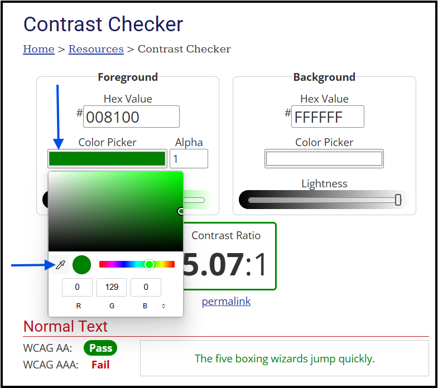
WebAIM's Contrast Checker is an online tool that works for most content. Use the dropper (see image) or enter hex or RGB colours to test contrast.
Finding accessible colours
You can use the hex values for different colours, like #FFFFFF to:
- find WCAG-compliant colour palettes with the Venngage Accessible Color Palette Generator.
- see how colour combinations affect different people WhoCanUse website.
Flashing images
Avoid flashing images, such as strobe lights or lightning, because they can cause seizures, dizziness, nausea or disorientation.
If flashes are needed, reduce risk by:
- having no more than three flashes per second
- keeping flashes small and low contrast compared to other content
For example, if a scene has bright lightning, edit it so it flashes no more than three times in one second.
Making existing visual information accessible
If a video has already been published and some important visuals are not accessible:
- provide a written description or summary near the video, or link to a separate page
- allow users to request the content in another accessible format
- update the video later to a fully accessible version when possible
This applies only to important visuals. Decorative images or background visuals do not need alternative descriptions.
Accessibility standards
Following this guidance helps more people access council content and supports meeting UK accessibility regulations, including PSBAR 2018.
For more guidance on using colour:
- Colour contrast accessibility (Scope for business)
- Colour contrast – why does it matter? (Accessibility in government)
- Contrast and Color Accessibility (WebAIM)
If system or format limits stop you from following this guidance, contact the Communications and Marketing team before publishing.